DNS Resolution

What is DNS
The Domain Name System (DNS) is the phonebook of the Internet. Humans access information online through domain names, like nytimes.com or espn.com. Web browsers interact through Internet Protocol (IP) addresses. DNS translates domain names to IP addresses so browsers can load Internet resources.
Each device connected to the Internet has a unique IP address which other machines use to find the device. DNS servers eliminate the need for humans to memorize IP addresses such as 192.168.1.1 (in IPv4), or more complex newer alphanumeric IP addresses such as 2400:cb00:2048:1::c629:d7a2 (in IPv6).

What is DIG Command
DiG is a powerful, lightweight command-line tool designed for DNS lookup and troubleshooting, built with speed, accuracy, and flexibility at the forefront. IT administrators, developers, network engineers, and simply curious users typically rely on DiG commands to validate their DNS configurations and ensure services are running smoothly. DiG interrogates DNS name servers so you can get to the root of connectivity problems.
Basic Syntax of the DiG Command
The DiG command follows a simple structure:

server — Specifies the DNS server to handle the request (will use your default resolver if not specified). @8.8.8.8 will use google resolvers.
name — The domain name to look up.
record type — The type of DNS record to query (e.g., A, AAAA, MX, TXT).
options — Additional flags or parameters, such as +short for a simpler output or -x for reverse lookups. Options with a dash are placed before the name.
Address resolution in DNS
DNS address resolution converts human-readable domain names into IP addresses that computers use to locate servers. It works like a digital phonebook, mapping names to numbers so websites can load correctly.
Translates domain names (e.g., www.example.com) into IP addresses
Essential for locating the correct server
Enables browsers to connect to websites
Functions like looking up a phone number in a contact list
Critical for proper internet communication
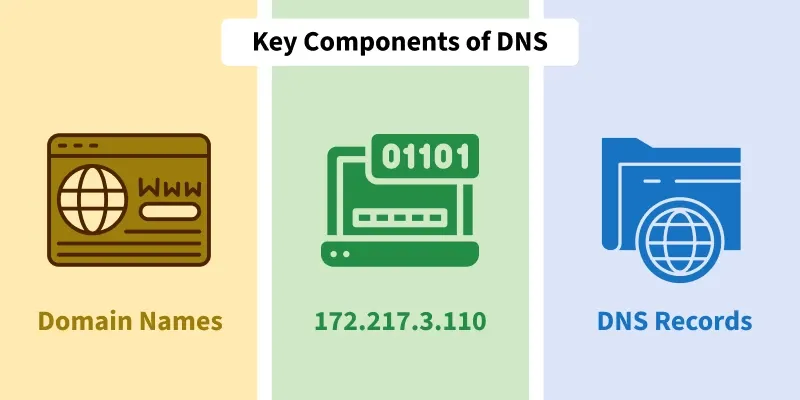
Domain Names: Human-readable addresses (e.g.,
www.google.com).IP Addresses: Numeric addresses used by computers to identify each other (e.g.,
172.217.3.110).DNS Records: Structured data that provides information about the domain name, such as IP address mappings
Working with Dig Command
1. To query domain "A" record
dig geeksforgeeks.org
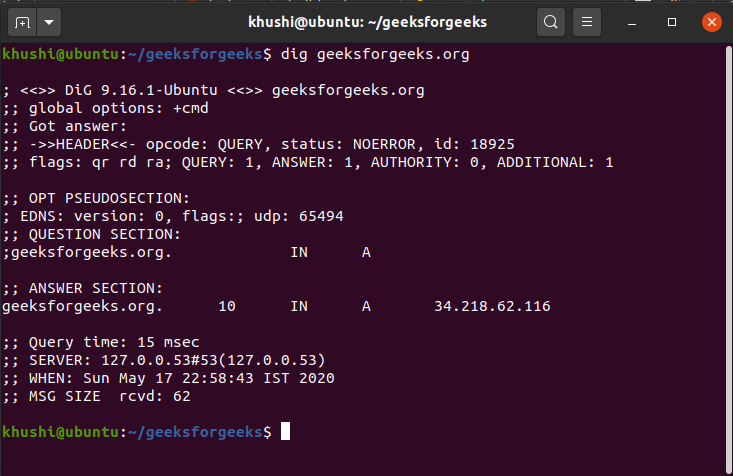
This command causes dig to look up the "A" record for the domain name "geeksforgeeks.org".
A record refers to IPV4 IP.
Similarly, if record type is set as "AAAA", this would return IPV6 IP.
2. To query domain "A" record with +short
dig geeksforgeeks.org +short
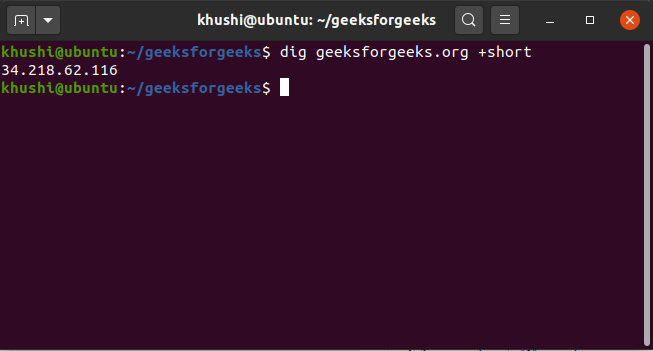
By default dig is verbose and by using "+short" option we can reduce the output drastically as shown. 3. To remove comment lines.
dig geeksforgeeks.org +nocomments
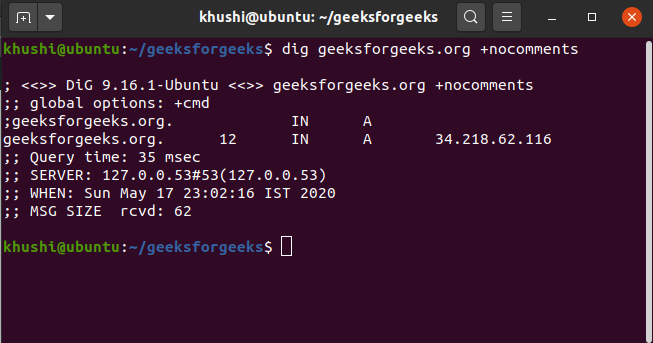
This command makes a request and excludes the comment lines. 4. To set or clear all display flags.
dig geeksforgeeks.org +noall
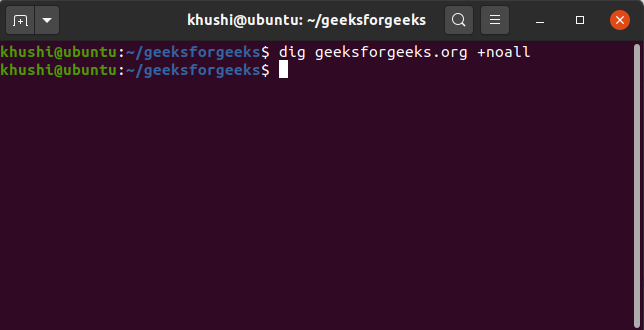
We use the "noall" query option, when we want to set or clear all display flags. 5. To query detailed answers.
dig geeksforgeeks.org +noall +answer
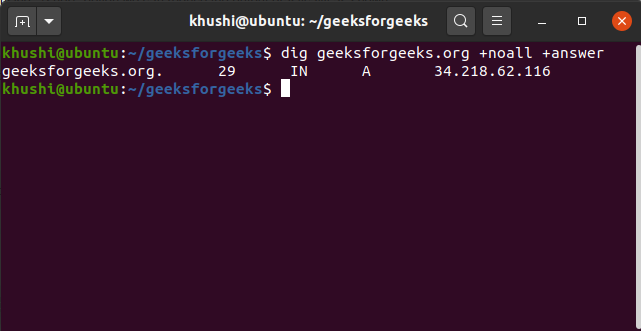
If we want to view the answers section information in detail, we first stop the display of all section using "+noall" option and then query the answers section only by using "+answer" option with the dig command. 6. To query all DNS record types.
dig geeksforgeeks.org ANY
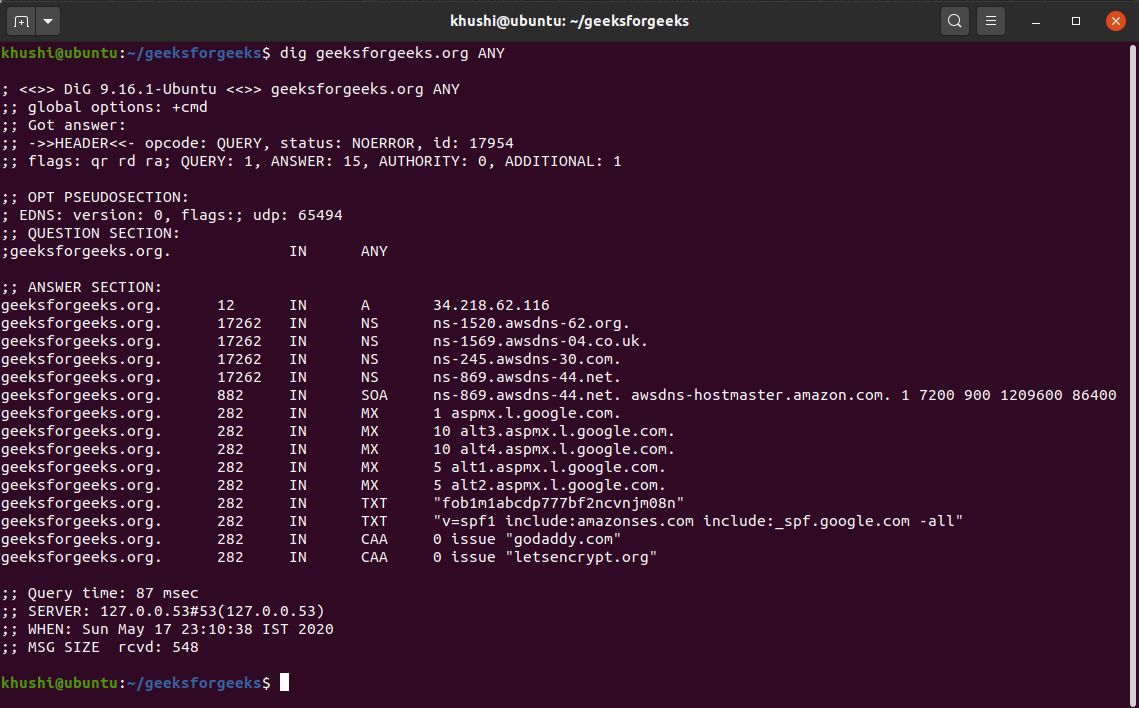
We use "ANY" option to query all the available DNS record types associated with a domain. It will include all the available record types in the output. 7. To query MX record for the domain.
dig geeksforgeeks.org MX
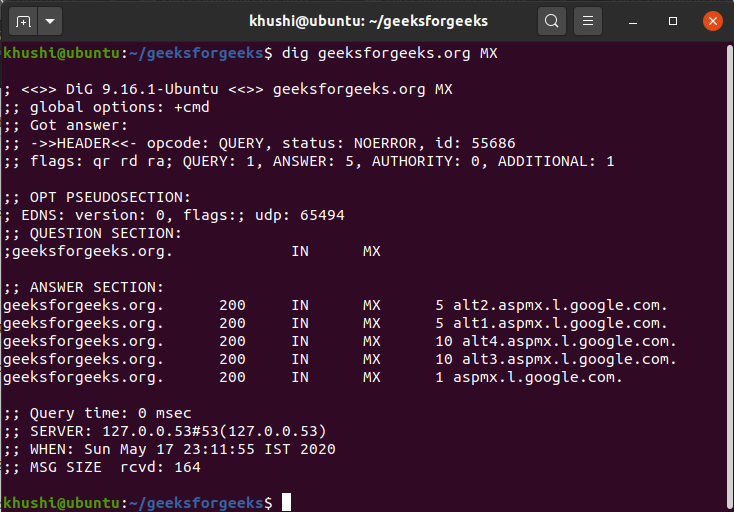
If we want only the mail exchange – MX – answer section associated with a domain we use this command.
What is a DNS NS record?
The DNS NS record stands for Domain Name System Name Server record. It holds information that determines which server is authoritative to a particular domain or DNS zone.
When you enter a website address into your browser, a DNS query is launched to locate the IP address and take you to that website. The name server record tells your server where to find the IP address associated with that domain.
If your NS records are misconfigured, no one can find and load your website domain.
You can configure multiple NS records for your domain to serve as a redundancy or load balancing—known as primary and secondary name servers. When the primary server is unavailable, the secondary server can step in to respond to requests.
How to Check the NS Record of a Domain
Checking your domain’s NS records is vital to confirm the correct configuration. If you don’t configure your NS records properly, users won’t be able to reach your website. You can check your NS record using online tools like EasyDMARC’s DNS Records Lookup.
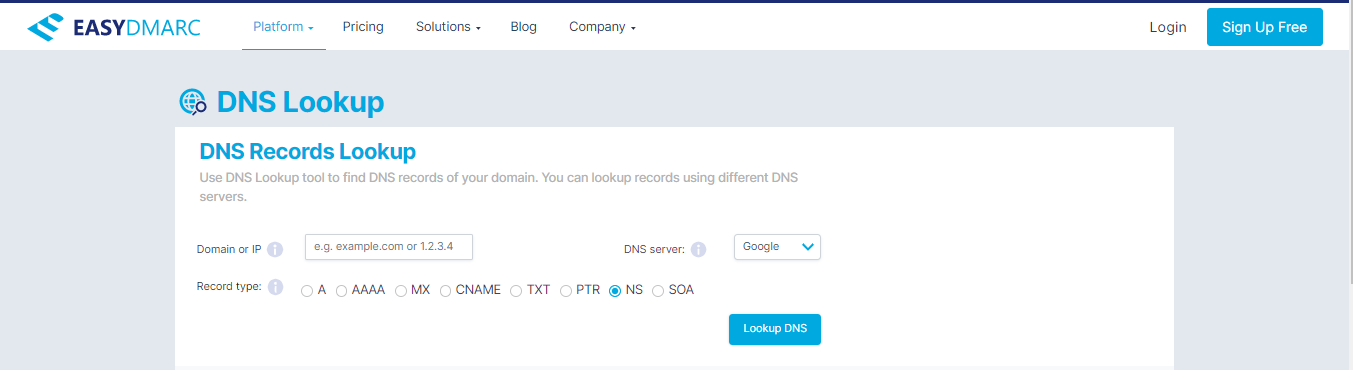
Our online tool is easy to use. Input your domain name in the “Domain or IP” box provided. Check the NS button and click the “Lookup DNS” button to proceed—it’s that simple!
Alternatively, you can check domain NS records using your computer terminal with the command nslookup. This command works well on Windows, macOS, and Linux operating systems. To check NS records for a domain, type the following command in your terminal:
nslookup -type=NS hostens.com